Print Etsy and Shopify addresses on Avery labels
Download your orders as a spreadsheet, turn each address into a label, and print a sheet that lines up, on Avery L7160, 5160 or any other sheet.
By Ryan Soanes · Updated 22 October 2026
Copying addresses onto labels one at a time is slow and easy to get wrong. Both Etsy and Shopify can give you your orders as a CSV file (a spreadsheet), and from there each address can go straight onto a sheet of labels.
How do you download your orders as a CSV?
Etsy and Shopify both export orders as a CSV file: Etsy from Download Data in Shop Manager, Shopify from Export on its Orders page.
From Etsy
- In Shop Manager, go to Settings → Options → Download Data.
- Under Orders, set CSV Type to Orders. (“Order Items” gives you a row for every item rather than every order, which would print some addresses twice.)
- Choose the month and year, and click Download CSV.
Etsy’s help centre has the details.
From Shopify
- Go to Orders and filter them if you like, for example to orders that aren’t fulfilled yet.
- Click Export, choose which orders, choose CSV as the format, and click Export orders.
Up to 50 orders download straight away; bigger exports are emailed to you. An order with several items has a row for each item, with the address on the first. See Shopify’s guide to exporting orders.
Turn the addresses into labels
In MagLab
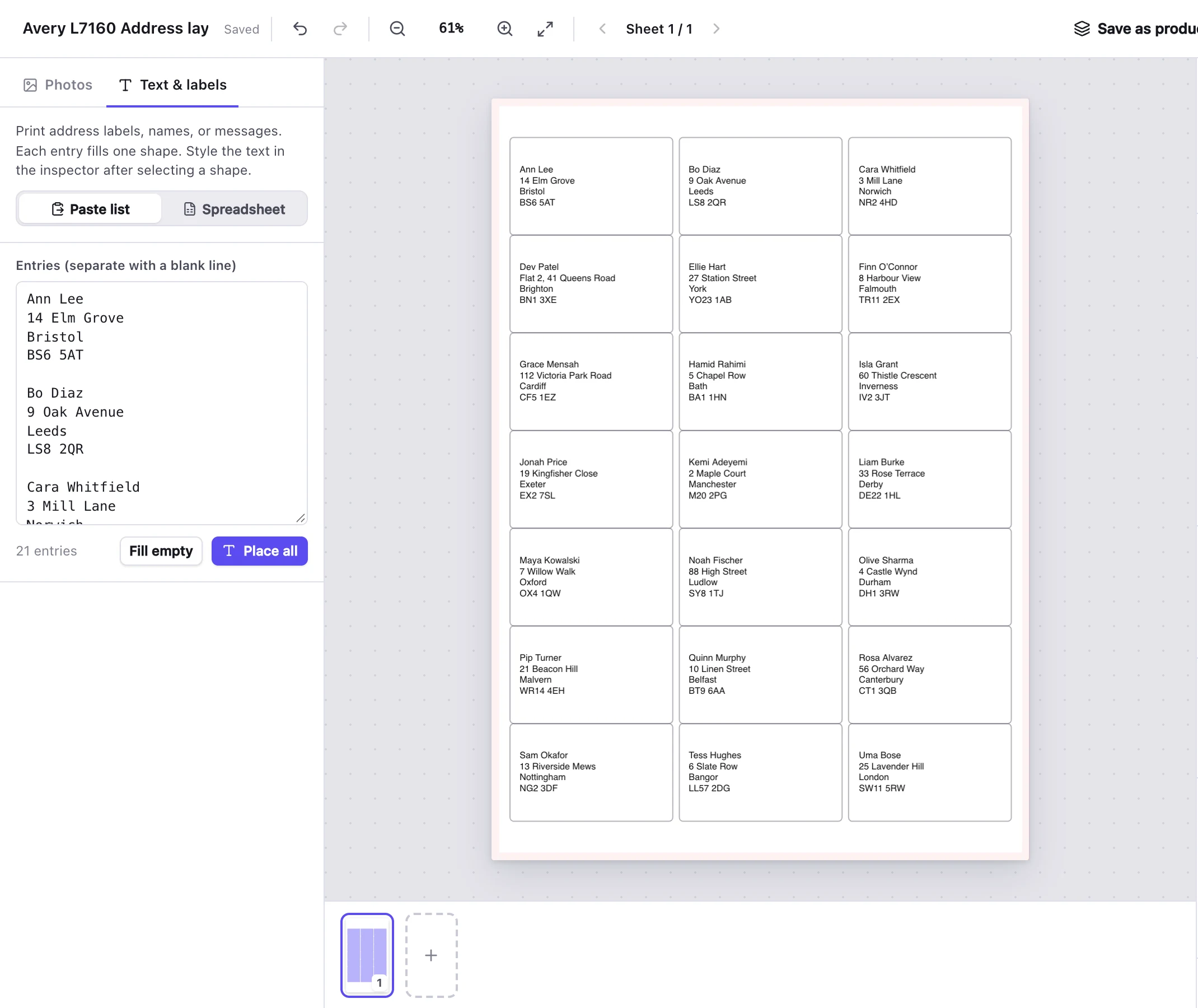
- Start a layout and choose your label sheet, such as Avery L7160 (21 labels on A4) or Avery 5160 (30 labels on US Letter).
- Open the Text & labels tab and choose Spreadsheet → Import CSV.
- MagLab guesses which columns make up the address. Check the preview: for a Shopify CSV, make sure it uses the Shipping columns (Shipping Name, Shipping Address1 and so on) rather than the Billing ones. To change it, edit the layout:
{{Column}}stands for a column’s value. - Fill the sheet. Lines that come out empty, such as a missing “Address 2”, are left out, and rows without an address don’t make a label.
Add your logo
To put your shop’s logo, or a mascot, on every label:
- Click Edit next to the template’s name on the right. The label sheet opens in MagLab’s Designer.
- Click Picture → On every shape and choose your logo. A PNG with a transparent background looks best. It goes at the left of every label.
- Drag it where you want it, or drag its corner to make it bigger or smaller. It snaps to the middle of the label.
- Click Keep text clear of it, so each address starts beside the logo instead of running over it.
- Click Done to go back to your labels, now with the logo on each one.
For a faint picture behind the address instead, tick Behind photos and text and lower its Opacity. The logo is saved with the template, so it’s there next time too.
In Microsoft Word
Word’s mail merge can do this too: Mailings → Start Mail Merge → Labels, choose Avery and your sheet’s product number, then Select Recipients → Use an Existing List and pick the CSV. Add the name and address fields to the first label and update the rest.
Which label sheet should you use?
For addresses, Avery L7160 on A4 and Avery 5160 on US Letter are the most common sheets. Choose a bigger label if you want room for a logo beside the address.
| Sheet | Paper | Labels per sheet | Label size |
|---|---|---|---|
| Avery L7160 | A4 | 21 | 63.5 × 38.1 mm |
| Avery L7161 | A4 | 18 | 63.5 × 46.6 mm |
| Avery L7163 | A4 | 14 | 99.1 × 38.1 mm |
| Avery L7173 | A4 | 10 | 99.1 × 57 mm |
| Avery 5160 / 8160 | US Letter | 30 | 2⅝ × 1” |
| Avery 5161 | US Letter | 20 | 4 × 1” |
| Avery 5163 | US Letter | 10 | 4 × 2” |
| Avery 5164 | US Letter | 6 | 4 × 3⅓” |
Avery sells some layouts under more than one number: 5160 is for laser printers and 8160 for inkjets, with the labels in the same places, so the same template works for both. Own-brand sheets often give the Avery number they match, such as “compatible with L7160”.
In MagLab, a long address shrinks to fit its label rather than running onto the next one. On the narrow 63.5 mm and 2⅝” labels that can make the text small, so for long addresses or a logo, the wider 99.1 mm and 4” labels are easier to read. Every sheet in the table is built into MagLab and has a free template.
Why don’t the addresses line up with the labels?
Usually the print dialog has shrunk the page, or the paper size is wrong. If neither, your printer is printing slightly out of position.
- Print at 100% or “Actual size”. “Fit to page” shrinks the layout, so the text drifts off the labels towards the bottom of the sheet.
- Check the paper size. A4 sheets such as L7160 need A4 in the print dialog; US sheets such as 5160 need US Letter.
- Test on plain paper first. Print one sheet, hold it against a sheet of labels up to the light, and check every address sits inside its label.
- If it’s a little off, your printer is probably printing slightly out of position. See why prints don’t line up: MagLab can measure it once and correct every sheet after that.
There are free label templates for 17 Avery sheets, a 4 × 6” thermal label and business cards, if you design your labels in Canva or another app.