User guide
Help
Fixes for common problems, more about calibrating, licence keys and new versions.
Troubleshooting
| Problem | Fix |
|---|---|
| Prints are slightly too big or small | You printed from another app with “Fit to page”, or the printer isn’t calibrated. Print from MagLab and calibrate. |
| Everything is a few millimetres off | Calibrate, and check the paper guides in the tray are snug. |
| Shapes near the edge are cut off | Your printer can’t print that close to the edge. Record its margins while calibrating, then move shapes inwards in the Designer. |
| HEIC photos from an iPhone won’t import | On a Mac they’re converted automatically. On Windows and Linux, save them as JPEG first. |
| A printer is missing | Click the refresh button next to the printer list. If it’s still missing, add the printer in your computer’s printer settings first. |
| A hot folder doesn’t react | Check it in Automate → Hot folders: a red badge shows the problem. For network folders, tick Network drive / NAS (check by polling). |
| Orders arrive but don’t print | Check the badge at the top of Automate. Paused means automation is paused: click Resume. Outside working hours means jobs wait until working hours start. Click Print now in the Print queue to print them anyway. |
| An order’s photos can’t be downloaded | MagLab tries again by itself for about a day. Check the computer’s internet connection. |
| My phone can’t open my orders | See If the phone can’t connect. |
| A Shopify error | See If something goes wrong on the Shopify page. |
| An Etsy error | See If something goes wrong on the Etsy page. |
| A label printer prints the odd label with part of it slid sideways | The printer lost data because the next label arrived while it was still printing. Set a wait between jobs for it. |
| Stickers are cut in the wrong place | See Fix a cut line. |
| The local API says the port is in use | Another program is using port 5719. Choose a different port in Automate → Local API. |
| MagLab opens to a blank window on Linux | See Raspberry Pi print station. |
Still stuck?
Click Help in MagLab’s sidebar to email us a question, a problem or an idea. MagLab fills in the email for you, and can add its version and your printer names so we can help faster.
More about calibrating
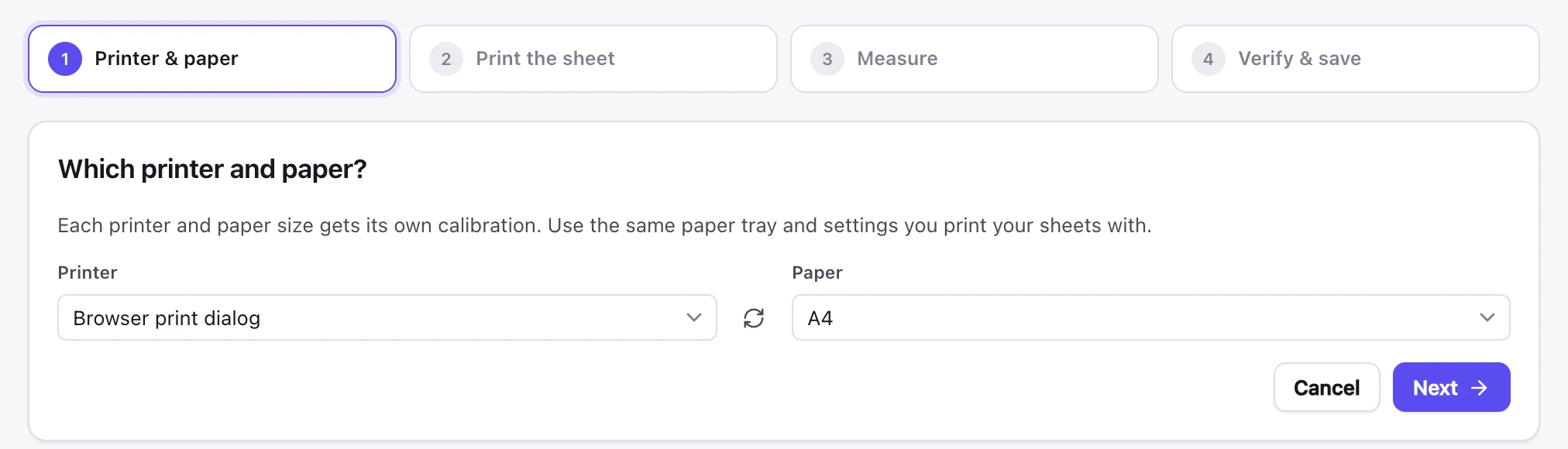
Getting started has the five steps. These are the details.
The four measurements
Use a steel ruler marked in millimetres.
- Line X and Line Y: from crosshair A to the tick at the end of each line.
- Edge X: from the left edge of the paper to the vertical line.
- Edge Y: from the top edge of the paper to the horizontal line.
The check sheet
Its square should measure exactly 100 mm, and its lines should be 20 mm from the edges. If anything is slightly out, adjust it with the nudge buttons (0.1 mm steps) and print another.
When to calibrate again
MagLab applies a calibration whenever you print to that printer on that paper size. Calibrate again if you change paper type, paper tray or printer driver.
Edges your printer can’t print
While measuring, turn on Record unprintable margins and read the rulers printed along each edge. Enter the smallest number whose line actually printed. MagLab then warns you when a template reaches into those edges.
Printer settings
In a layout, click Print, choose the printer, then click Show advanced printer options. These are saved per printer, and automation uses them too.
Driver settings such as darkness and speed
On a Mac, Linux or a Raspberry Pi, Extra CUPS options passes settings to the printer’s driver, separated by spaces. Each driver has its own names. To list a printer’s settings and its choices, open Terminal and run lpoptions -p PRINTER -l, using the printer’s name from MagLab’s printer list. For example, the TSPL label printer driver uses Darkness=12 PrintSpeed=30.
They’re saved when you click Print.
Wait between jobs
Some label printers lose data when the next label arrives while they’re still printing the last one. The label then comes out with part of it slid sideways. Set Wait between jobs to a few seconds (try 4) for that printer. Each sheet or label is then sent on its own, that long after the one before. Leave it at 0 for other printers.
It’s saved as soon as you change it.
Free trial
The free trial starts the first time you open MagLab and includes everything in MagLab Pro.
The trial follows your work. Templates, layouts and settings you make during the trial remember when it started, so opening them on another computer carries on the same trial.
Your licence key
- Activate: paste the licence key from your purchase email into Settings → Subscription and click Activate.
- Move to a new computer: choose Deactivate this computer in Settings → Subscription on the old one, or remove it from your account page. Then activate the new one with the same key.
- Change plan: you get a new licence key by email. Paste it into Settings → Subscription.
Working offline
MagLab checks your licence about once a day when it’s online. Offline, it keeps working for 7 days, then reminds you for another 7 before printing and export pause.
If your subscription ends
You can still open and design layouts and templates. Printing, export and automation pause until you renew. Nothing you made is lost.
New versions
When there’s a new version, MagLab shows a message with a Download button. Install the new version over the old one. Your templates, layouts and settings are kept.
- On a Raspberry Pi, install it with
sudo apt install, as you did the first time. - The message comes once for each version, and again a week later if you haven’t updated. Settings → About shows the new version too.
- To check yourself, click Check for updates in Settings → About.
- To switch the messages off, use Settings → Tell me about new versions.
MagLab looks for new versions on the MagLab website when it starts and twice a day. It sends nothing about you or your work.
Anonymous usage stats
MagLab sends anonymous usage stats, so we can see which features are used and where people get stuck. A report goes when MagLab starts and, while it’s open, at most once a minute. It holds a random ID for this installation, MagLab’s version, your operating system and licence type, and what you did as counts (for example: opened Templates, added 12 photos, printed 3 sheets). It never holds your photos, designs, file or printer names, orders, customers or licence key.
To switch them off, untick the box when you first open MagLab, or use Settings → Share anonymous usage stats later. That also deletes the random ID from your computer. MagLab then sends one last message so we can count how many people said no: that you switched them off, MagLab’s version and your operating system, without the random ID. Nothing more is sent after that.